![iAM Learning logo-1.png]](https://support.iamlearningcontent.com/hs-fs/hubfs/iAM%20Learning%20logo-1.png?height=50&name=iAM%20Learning%20logo-1.png)
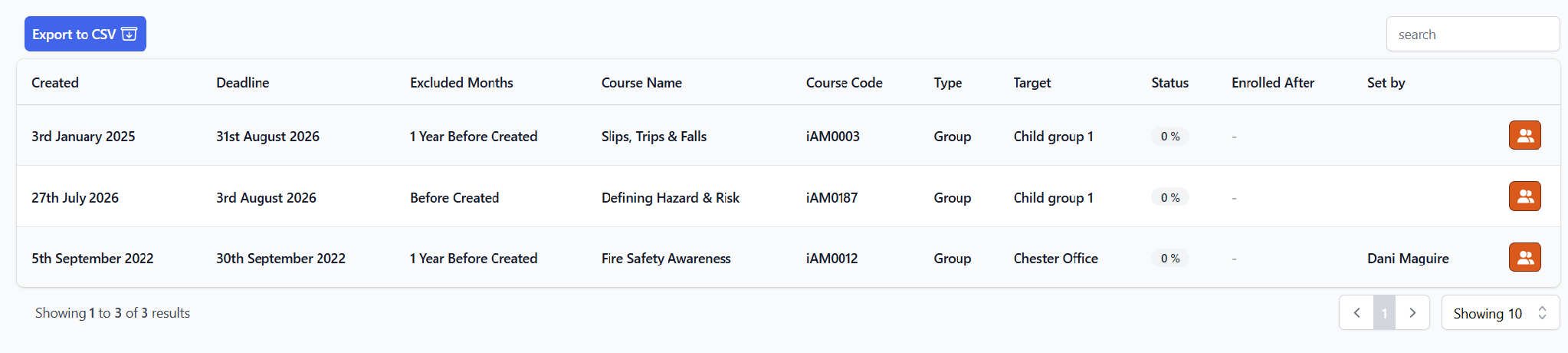
From the Dashboard in Training Manager, open the Deadlines tab. Each company or group deadline has a button at the end of its row: blue for a company deadline, orange for a group deadline. Click it to open the deadline summary.
The gauge shows the percentage of learners who have passed. The number under the date is everyone the deadline applies to, including learners who joined after it was set.
What the figures mean
Passed is the number of learners who have passed the course.
Deadline Met is the number who passed on or before their due date.
Passed After is the number who passed, but after their due date.
Awaiting Pass is the number who haven't passed yet. Once the deadline date has gone by, this changes to Deadline Missed.
Enrolled After is the number of learners who joined after the deadline was set. They are already counted in the other figures; this tile just shows how many there are.
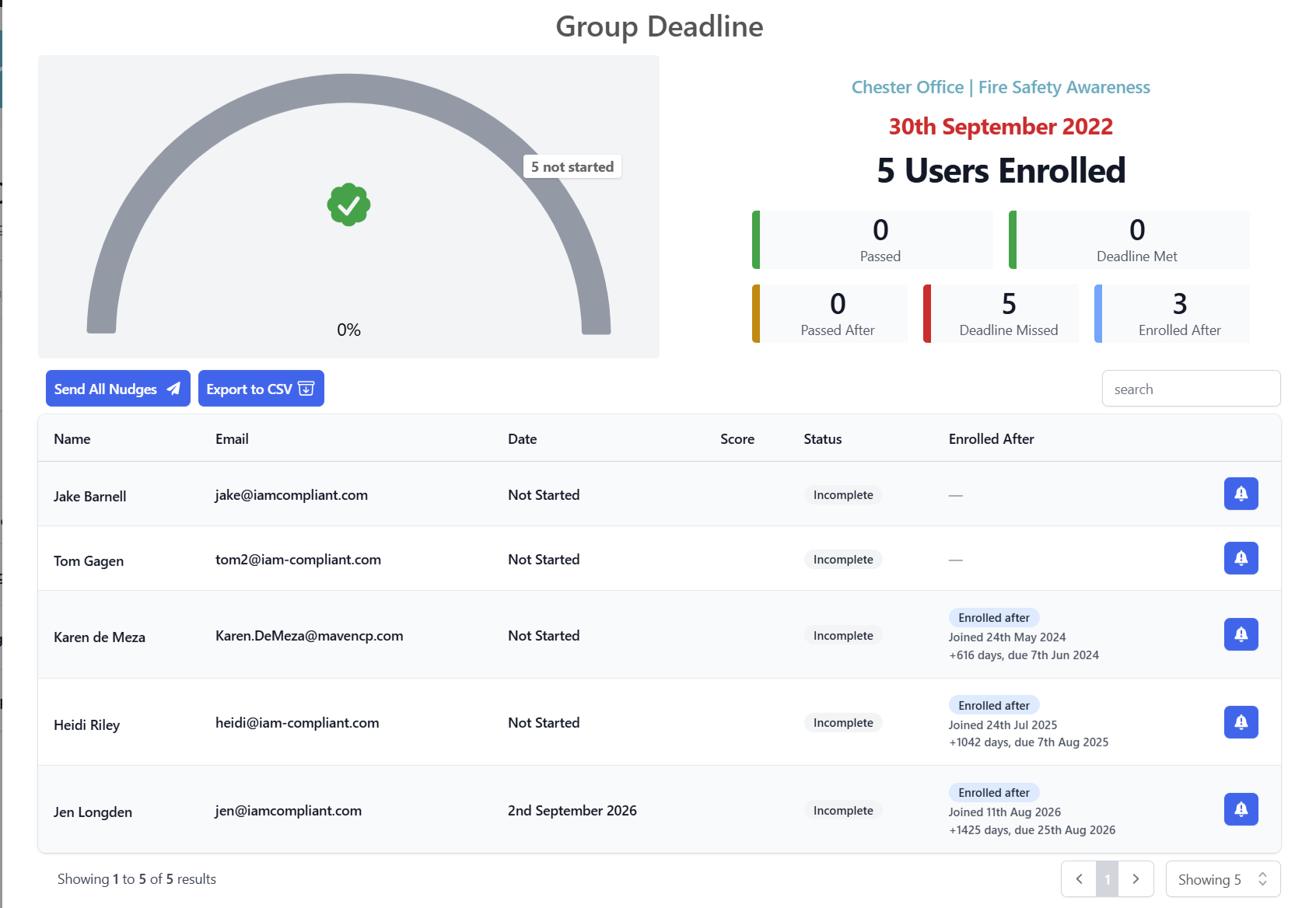
Please note, a learner who joined late may have been given extra time. Deadline Met and Passed After are judged against each learner's own due date, so someone who passes within their extension has met the deadline.
The learner list
Below the figures is every learner the deadline applies to, with their status, score and the date they completed. The Enrolled After column shows when a late joiner joined and any extra time they were given, for example "+7 days, due 8th Oct 2025" or "No extension".
Use the bell button in a row to nudge one learner, or the blue "send all nudges" button to nudge everyone who hasn't passed. The "export to CSV" button downloads the list.
Article Last updated: 23/10/26