![iAM Learning logo-1.png]](https://support.iamlearningcontent.com/hs-fs/hubfs/iAM%20Learning%20logo-1.png?height=50&name=iAM%20Learning%20logo-1.png)
This article is for Training Managers, Champions and Group Admins with edit access.
You can assign training in two ways. You can choose to assign training to an individual, or to a group.
Assigning training to an individual.
Head to the "User" tab at the top of the training manager area.
Find the user you would like to assign training to and click the "courses" button next to their name. 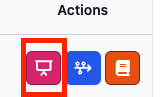
You can see what content the user has access to as there will be a tick next to the courses turned on . You can add additional training by searching for the title, and ticking the box next to the title: 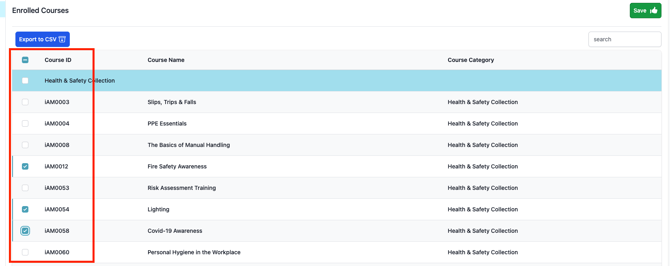
Once you have made your selections, make sure you press save in the top right hand corner, or the selections won't appear when you move away from the screen.
As soon as you have pressed save. The user will be able to see the content the next time they log in to the platform.
Assigning training to a group.
If you'd like to turn on some training content for a group of users, the quickest way to do this would be through the groups function.
Head to the groups area from the top of the training manager dashboard.
You may need to set up a group - in which case you can read how to do that here.
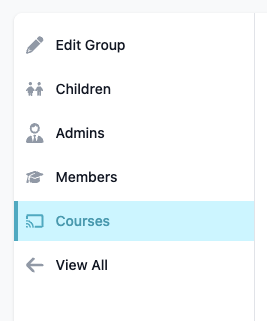
Select the courses view for the group and make your content choices, and press save. Anyone who is a member of the group will be able to see the training.